
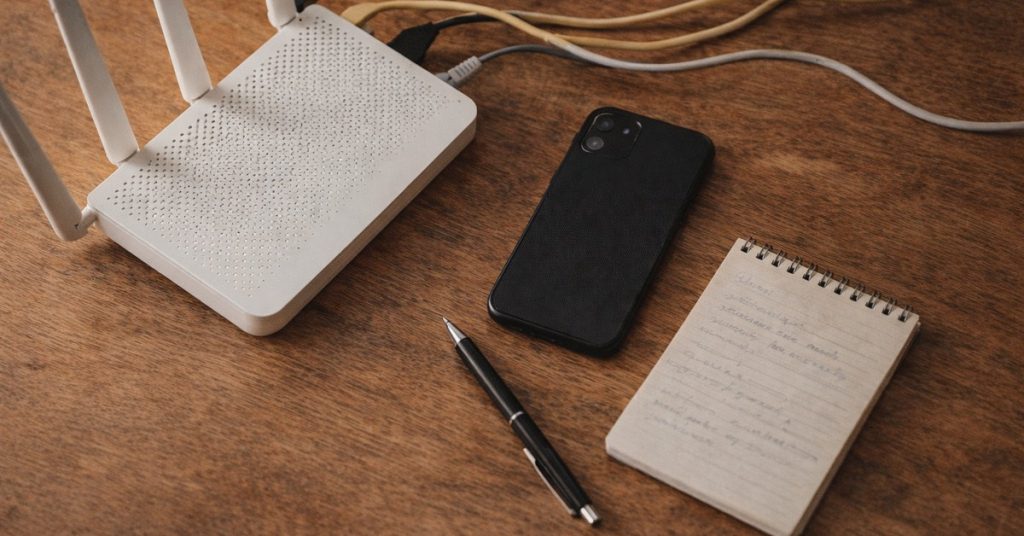
Your home modem and router is the front door to the internet for every single device in your house — the laptops, phones, tablets, gaming consoles, smart TVs, all of it. Every time someone in your family browses a website, streams a video, or sends a message, that traffic passes through it.
Most Australian families have never changed a single setting on their router. That’s completely understandable — the thing sits in a corner, the lights blink, and it just… works. Touching it feels risky. But here’s the thing: the default settings on most home routers are designed for convenience, not security. And a few straightforward changes can make a real difference to what your kids can access, and how protected your household is.
You don’t need to be technical to do any of this. We’ll walk through it step by step.
Finding Your Router’s Admin Panel
Every home router has an admin panel — a settings page you access through a regular web browser, not an app. Think of it as the control room for your home network.
Open any browser on a device connected to your home Wi-Fi, and type one of these addresses into the address bar (not the search box):
192.168.0.1192.168.1.110.0.0.1
One of those will usually load a login page. Here’s a quick guide for the most common routers in Australian homes:
- Telstra Smart Modem (Arcadyan or Technicolor) — try
10.0.0.138or typetelstra.gatewayin your browser - Optus routers (Sagemcom) —
192.168.0.1 - TP-Link (common with TPG and Aussie Broadband) —
192.168.0.1ortplinkwifi.net - Fritz!Box (Aussie Broadband, Internode) —
fritz.boxor192.168.178.1 - ASUS —
router.asus.com - Netgear —
routerlogin.netor192.168.1.1
Tip: Check the sticker on your router first. Most routers have a label on the bottom or back that shows the default admin URL, username, and password. This is the fastest way to confirm what address yours uses. If the default credentials have never been changed, they’re almost certainly still listed there.
Step 1: Change the Admin Password
This is the single most important thing on this list.
Most routers ship with a default admin username and password — often something like admin / admin, or admin / password. These defaults are publicly known. Anyone who connects to your Wi-Fi can potentially log into your router’s admin panel and change whatever they like.
- Log into your router’s admin panel.
- Look for a section called Administration, System, Management, or Advanced Settings.
- Find the option to change the admin password.
- Choose a strong passphrase — three or four random words strung together works well (for example: correct-horse-battery-staple).
- Save it, and write it down somewhere safe at home — not on a sticky note on the router itself.
Important: This is completely separate from your Wi-Fi password. The admin password protects the router’s settings page — keep it private from everyone in the household, including your kids.
Step 2: Change the Default Wi-Fi Password
If your Wi-Fi password is still the one printed on the sticker on the back of your router, it’s worth changing it — especially if you have teenagers.
That sticker is physically on the router, which means anyone who’s ever been in your house can take a photo of it. Teenagers routinely share Wi-Fi passwords with friends without a second thought. Once shared, you’ve lost track of who has access to your home network.
Go to Wireless Settings in the admin panel and change the password (sometimes labelled “WPA2 Key” or “Network Key”) to something memorable but not printed anywhere visible. You’ll need to reconnect all your devices after changing it — annoying for ten minutes, but worth it.
Step 3: Set Up a Separate Wi-Fi Network for Kids’ Devices
Most modern routers let you create more than one Wi-Fi network from the same box — you may have seen this called a Guest Network. Each network has its own SSID — that’s just the name that appears when you search for Wi-Fi on a device.
The idea is simple: kids’ devices connect to the kids’ network, your devices connect to the main one. This creates separation — if something goes wrong on the kids’ network, it doesn’t affect your devices.
- In your router’s admin panel, look for Wireless Settings, Guest Network, or Multiple SSIDs.
- Enable the second network and give it a recognisable name (something like “HomeKids”).
- Set a separate password for this network.
- Move your kids’ devices — phones, tablets, gaming consoles — over to this network.
Some routers also let you set time schedules on a guest network, which is handy for cutting off internet access after bedtime.
Step 4: Enable DNS-Based Content Filtering on the Kids’ Network
This is where the real content protection comes in — and it’s simpler than it sounds.
What is DNS? When your child types a website address into a browser, their device asks a DNS server “what’s the actual address for this site?” Think of DNS as the internet’s address book. By default, your router uses your internet provider’s DNS server — which has no content filtering whatsoever.
You can swap in a filtered DNS service instead. These free services block websites known for adult content, malware, and harmful material. When a device tries to visit one of those sites, the filtered DNS simply doesn’t return an address — the site quietly never loads.
Recommended free DNS services for families:
Cloudflare for Families — blocks malware and adult content
- Primary:
1.1.1.3 - Secondary:
1.0.0.3
CleanBrowsing Family Filter — blocks adult content, proxies and VPNs
- Primary:
185.228.168.168 - Secondary:
185.228.169.168
OpenDNS FamilyShield — blocks adult content and phishing sites
- Primary:
208.67.222.123 - Secondary:
208.67.220.123
How to apply it:
- In your admin panel, look for DNS Settings — usually under Advanced, WAN Settings, or Internet Settings.
- If your router supports separate DNS per SSID, apply it to the kids’ network only. If not, apply it to the whole router — it won’t harm adult devices.
- Enter the primary and secondary DNS numbers from your chosen service above.
- Save and restart the router.
- Test it by connecting a device to the kids’ network and trying a known adult website — it should fail to load.
An honest note: DNS filtering isn’t foolproof. A teenager who knows what they’re doing can bypass it using a VPN or by switching to mobile data. What it does very well is stop casual browsing into harmful content — which covers the vast majority of accidental and opportunistic exposure. A sensible default, not an impenetrable wall.
Step 5: Disable WPS
WPS (Wi-Fi Protected Setup) is that button on many routers that lets a device connect without entering a password. Security researchers have known for over a decade that WPS has a serious vulnerability that can allow an attacker to access your network without knowing your password. There’s no good reason to keep it enabled. Find WPS in your router’s wireless settings and switch it off. One toggle, done.
Step 6: Keep the Firmware Updated
Your router runs software just like your phone — and that software gets security updates when vulnerabilities are discovered. Most modern routers have an auto-update option under Administration or Advanced. If yours has it, turn it on. If not, check for firmware updates every few months — there’s usually a “Check for Updates” button in the same section. It takes two minutes and closes off security holes that are otherwise sitting there open.
A Note on What These Settings Don’t Do
Let’s be straight: everything in this guide reduces risk. None of it eliminates it.
A determined teenager who wants to access something online will eventually find a way — mobile data, a friend’s device, a VPN. The goal isn’t to build a fortress; it’s to set sensible defaults so that casual exposure to harmful content is much less likely. The most effective online safety tool in your home isn’t a router setting — it’s an ongoing conversation with your kids about what they’re seeing, what to do when something feels wrong, and why some of these limits exist. These technical steps support that conversation; they don’t replace it.
You’ve Got This
You don’t need to do all six steps in one sitting. Start with changing the admin password, and work through the rest when you have a spare twenty minutes. Each one adds a layer of protection that wasn’t there before — and that’s worth doing.